
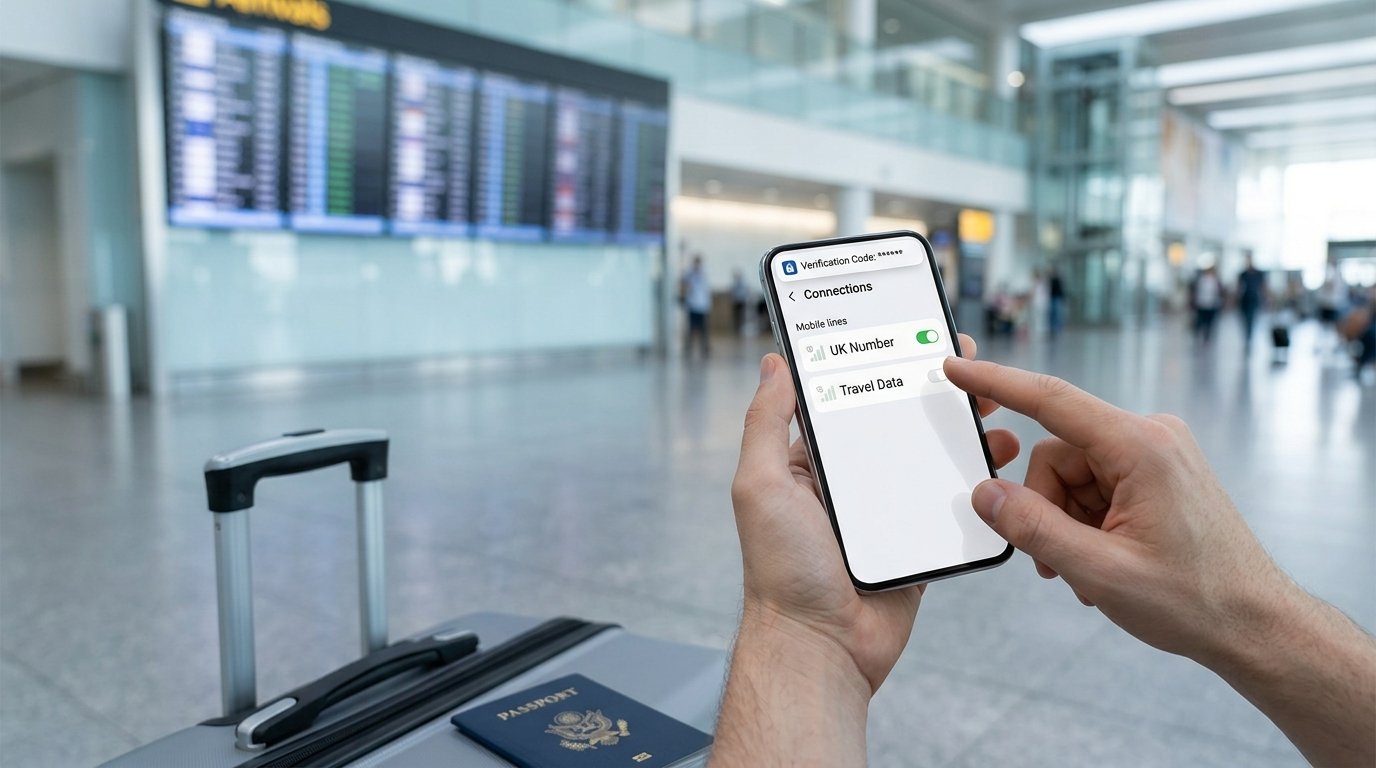
eSIM Not Working Abroad? 12 Fixes for iPhone and Android (2026)
An eSIM not working abroad is almost always a settings problem, not a broken eSIM. In most cases the fix takes less than two minutes: turn on data roaming for the eSIM line, choose it as your mobile data line, and restart the phone. This guide walks you through every fix for an eSIM not working abroad, in the order that solves the most problems first.
The steps work for travel eSIMs from Saily, Holafly and most other providers, on both iPhone and Android. Read the warning section before you try anything drastic, because one wrong tap can delete an eSIM you cannot reinstall.
eSIM Not Working Abroad: The 60-Second Checklist
Before you dig into menus, run through this short list. It fixes the majority of cases where an eSIM is not working abroad.
- Data roaming is switched on for the travel eSIM line.
- The travel eSIM is selected as your mobile data line.
- The eSIM line itself is turned on.
- You have restarted the phone, or toggled airplane mode off and on.
- Your plan covers the country you are in and still has data left.
If all five are correct and you still have no data, work through the fixes below one at a time.
Why Is My eSIM Not Working Abroad?
A travel eSIM is a roaming connection by design. The provider is usually based in one country and connects you to a partner network in another, so your phone treats it as roaming even on its first day.
That is why the most common reason for an eSIM not working abroad is data roaming being switched off. Other common causes are the wrong line set for mobile data, a missing APN, the phone sticking to a weak network, or a plan that has not activated yet.
Less often, the phone is carrier locked, the plan does not cover the country, or the data allowance has run out. Each of these has a clear fix below.
How to Fix an eSIM Not Working Abroad on iPhone
Fix 1: Turn On Data Roaming for the eSIM
Open Settings, then Mobile Data (Cellular in the US), and tap your travel eSIM line. Switch on Data Roaming for that line only.
Leave data roaming off on your home SIM if you want to avoid roaming charges from your home network. This single setting fixes most cases of an eSIM not working abroad.
Fix 2: Choose the eSIM as Your Mobile Data Line
In Settings, go to Mobile Data and tap the Mobile Data option at the top. Select your travel eSIM instead of your home SIM.
Consider turning off Allow Mobile Data Switching. When it is on, the iPhone can quietly move data back to your home SIM, which can trigger roaming fees.
Fix 3: Make Sure the eSIM Line Is On
Tap the travel eSIM in Mobile Data settings and check that Turn On This Line is enabled. New eSIMs are sometimes installed in an off state, especially if you added them weeks before the trip.
How to Fix an eSIM Not Working Abroad on Android
Fix 4: Turn On Roaming in the SIM Manager
On Samsung phones, open Settings, then Connections, then Mobile Networks, and switch on Data Roaming. On Google Pixel phones, go to Settings, then Network and Internet, then SIMs, tap the travel eSIM and turn on Roaming.
Menu names vary between brands, but every Android phone has a roaming switch for each SIM. Search for roaming in the Settings search bar if you cannot find it.
Fix 5: Set the eSIM as the Preferred Data SIM
On Samsung, open SIM Manager and set Mobile Data to the travel eSIM. On Pixel, open the SIMs page and turn on Mobile Data for the travel eSIM, which turns it off on the other line.
If both SIMs are set to share data, the phone may keep using your home SIM. Pick one line for data and stick with it for the trip.
Fix 6: Restart or Toggle Airplane Mode
Turn airplane mode on, wait about 30 seconds, and turn it off again. This forces the phone to search for networks from scratch.
If that does not help, restart the phone completely. A restart clears many temporary connection errors and is often the fix when an eSIM is not working abroad right after landing.
Fix 7: Check the APN Settings
The APN (Access Point Name) tells your phone how to reach the provider’s data network. Most travel eSIMs set it automatically, but sometimes the field stays empty or holds an old value.
Your provider lists the correct APN in its app or installation email. On iPhone, enter it under Settings, Mobile Data, your eSIM line, Mobile Data Network. On Android, look for Access Point Names in the mobile network settings for that SIM.
Fix 8: Select a Network Manually
Your phone may lock onto a network that your eSIM provider does not partner with, or onto a weak signal. Turning off automatic network selection lets you choose a supported network yourself.
On iPhone, go to your eSIM line and tap Network Selection, then turn off Automatic. On Android, open Network Operators and search for networks. Pick a network listed in your provider’s coverage page, wait a minute, and test your data.
Fix 9: Switch From 5G to 4G
Some travel plans do not include 5G in every country, or the 5G signal is weak indoors. Setting the eSIM line to 4G or LTE often gives a more stable connection.
On iPhone, open your eSIM line, then Voice and Data, and choose LTE. On Android, change the preferred network type for that SIM to 4G or LTE.
Fix 10: Check That Your Plan Has Activated
Many travel eSIMs only start their validity period when they first connect to a supported network in the destination country. Some activate on installation, and a few need a manual start in the app.
Open your provider’s app and check the plan status. If it shows as inactive or pending, follow the activation step in the app or contact support. Also confirm that the plan covers the country you are in, especially if you crossed a border on a multi-country trip.
Fix 11: Check Your Data Balance
A fixed data plan stops working when the allowance runs out. Streaming, video calls and automatic photo backups can use several gigabytes in a day.
Check your remaining data in the provider’s app and top up if needed. If you keep running out, an unlimited plan such as Holafly avoids the problem on long stays.
Fix 12: Turn Off Your VPN While Testing
A VPN does not usually stop an eSIM from connecting, but a VPN that is stuck reconnecting can make it look as if you have no internet. Turn the VPN off, check that mobile data works, and then turn it back on.
Once the eSIM is working, a VPN is still worth using for UK banking apps and streaming services that block foreign connections. NordVPN and Proton VPN both run smoothly on eSIM data.
Saily for short trips, Holafly for unlimited data on longer stays
eSIM Not Working Abroad: What Not to Do
Do not delete the eSIM. Many travel eSIMs can only be installed once. If you remove the profile to try again, you may lose the plan and have to ask support for a replacement.
Be careful with Reset Network Settings. It clears saved WiFi networks and can affect eSIM settings on some phones. Use it only after the other fixes have failed, and check your phone maker’s guidance first.
Do not turn on roaming for your home SIM by mistake. If the travel eSIM fails and your home SIM takes over data, you may face daily roaming fees. Our guide to keeping your UK number abroad explains how to set up both lines safely.
Is Your Phone Locked? Why an eSIM Is Not Working Abroad
A phone bought on a contract may be locked to its original network. A locked phone can install a travel eSIM but may refuse to connect with it.
Ask your home network to unlock the phone before you travel. Most UK networks now sell phones unlocked, but older handsets and some contracts still carry a lock.
Your phone also needs to support eSIM in the first place. Apple lists compatible models on its iPhone support pages, and the GSMA, the global mobile industry body, publishes the eSIM standard used by every major phone maker.
When to Contact Your eSIM Provider
If your eSIM is not working abroad after all twelve fixes, contact the provider’s support team. Have your order number, phone model and a screenshot of your mobile data settings ready.
Holafly offers 24/7 support by live chat, email and WhatsApp, which helps when you are stuck at an airport at night. Saily offers in-app chat and email support. Use hotel, airport or café WiFi to reach them if your data is down.
How to Avoid an eSIM Not Working Abroad Next Time
Install the eSIM at home over WiFi, label it clearly, and check the coverage list for every country on your route. Write down the APN from the installation email in case you need it later.
Choose a provider with responsive support and good partner networks. Our Saily eSIM review and Holafly review cover both in detail, and our guides to the best eSIM for Europe and the best eSIM for Thailand compare plans by destination.
Why is my eSIM not working abroad?
The most common reason for an eSIM not working abroad is that data roaming is switched off for the eSIM line. Other causes include the wrong line set for mobile data, a missing APN or a plan that has not activated.
Do I need data roaming on for a travel eSIM?
Yes. Travel eSIMs connect through partner networks, so your phone treats them as roaming. Turn on data roaming for the eSIM line only and leave it off for your home SIM.
Should I delete and reinstall my eSIM?
No. Many travel eSIMs can only be installed once, so deleting the profile can lose your plan. Contact the provider’s support team instead.
Can a VPN stop my eSIM from working?
A VPN does not usually block an eSIM, but a stuck VPN connection can look like no internet. Turn it off to test your data, then turn it back on.
Why does my eSIM show signal but no internet?
Signal without data usually points to data roaming being off, a missing APN or an exhausted data allowance. Check those three settings first.
Related Guides
- Best eSIM for Expats
- How to Install an eSIM
- UK Roaming Charges Compared
- Saily eSIM Review
- Holafly Review
- Best eSIM for Europe
- Best eSIM for Thailand
- eSIM for Dubai
- Keep UK Number Abroad
Expat Essentials
Affiliate disclosure: Some links in this guide are affiliate links. If you purchase through them, we earn a small commission at no extra cost to you.